
Яυɼiɑȋɾ (![[personal profile]](https://www.dreamwidth.org/img/silk/identity/user.png) ruriair) wrote in
ruriair) wrote in ![[community profile]](https://www.dreamwidth.org/img/silk/identity/community.png) undertheblue2014-07-14 04:48 pm
undertheblue2014-07-14 04:48 pm
ruriair) wrote in undertheblue2014-07-14 04:48 pm


Entry tags:
Tutorial: Navstrips and You.
Dreamwidth just did a thing which included messing with the navigation strip to make things more mobile-friendly.
I've noticed that a few people have been having issues with it as seen here and here.
The navstrip is a table, not a div. For some reason some designers set the navstrip's table cells ("td" or "table data") to have a background color and not the table itself to have a background color. Hence you see colored cells on top of the navstrip's default light gray or dark gray gradient now where before, the colors hid the gradient due to the way the navstrip had been coded by Dreamwidth staff.
If this is your issue then first you want to look in your custom CSS for something like:
#lj_controlstrip td {
background: #SETOFNUMBERS;
}
(could also be background-color: #SETOFNUMBERS;.)
You want to take that set of numbers and put it under this:
#lj_controlstrip {
background: #SETOFNUMBERS!important;
}
To be extra safe you can also add in background-image: none!important; after the previous ; but before the last }. To be extra-extra safe, make sure this code is at very end of your CSS.
If however your navstrip is supposed to have a background image, you just want to move the background image code from #lj_controlstrip td to #lj_controlstrip like so:
#lj_controlstrip td {
background: #SETOFNUMBERS url('IMAGE URL') repeat scroll;
}
or
#lj_controlstrip td {
background-image: url('IMAGE URL') repeat scroll;
}
to
#lj_controlstrip {
background: #SETOFNUMBERS url('IMAGE URL') repeat scroll;
}
or
#lj_controlstrip {
background-image: url('IMAGE URL') repeat scroll;
}
To be extra safe, add background: transparent!important; under #lj_controlstrip td so the table cells will not have a background color on top of the navstrip's background image or background color.
If you want to center your navstrip instead of having it sit to the far left, then you just need to put text-align: center!important; under #lj_controlstrip. You should then be able to put specific text-align: THING!important; under each table cell: #lj_controlstrip_userpic, #lj_controlstrip_user (where your username and links are), #lj_controlstrip_login (logged-out view), #lj_controlstrip_actionlinks ("You are viewing X plus links), and #lj_controlstrip_search. You can choose between center, left/justify, or right. Currently I don't know how to make the navstrip stretch across the full length of the screen like it used to, because it's an issue of getting the table cells to stretch the full length of the screen evenly among all four cells. Table cells don't like CSS.
If you have questions on the Navstrip you may ask, but it might be better to throw those over at the staff on the news post or maintenance post.
I've noticed that a few people have been having issues with it as seen here and here.
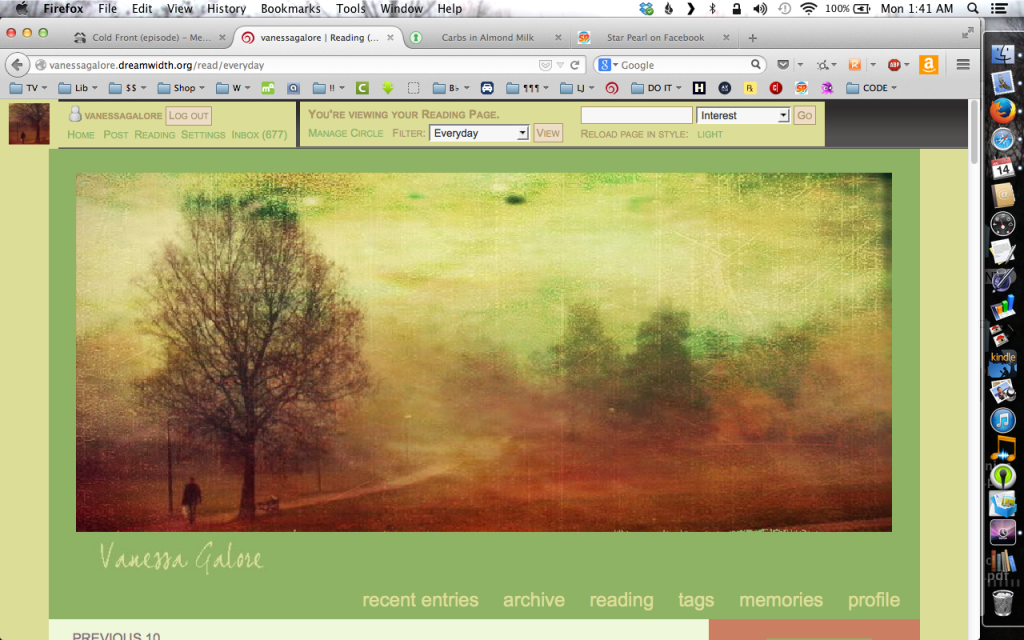
The navstrip is a table, not a div. For some reason some designers set the navstrip's table cells ("td" or "table data") to have a background color and not the table itself to have a background color. Hence you see colored cells on top of the navstrip's default light gray or dark gray gradient now where before, the colors hid the gradient due to the way the navstrip had been coded by Dreamwidth staff.
If this is your issue then first you want to look in your custom CSS for something like:
#lj_controlstrip td {
background: #SETOFNUMBERS;
}
(could also be background-color: #SETOFNUMBERS;.)
You want to take that set of numbers and put it under this:
#lj_controlstrip {
background: #SETOFNUMBERS!important;
}
To be extra safe you can also add in background-image: none!important; after the previous ; but before the last }. To be extra-extra safe, make sure this code is at very end of your CSS.
If however your navstrip is supposed to have a background image, you just want to move the background image code from #lj_controlstrip td to #lj_controlstrip like so:
#lj_controlstrip td {
background: #SETOFNUMBERS url('IMAGE URL') repeat scroll;
}
or
#lj_controlstrip td {
background-image: url('IMAGE URL') repeat scroll;
}
to
#lj_controlstrip {
background: #SETOFNUMBERS url('IMAGE URL') repeat scroll;
}
or
#lj_controlstrip {
background-image: url('IMAGE URL') repeat scroll;
}
To be extra safe, add background: transparent!important; under #lj_controlstrip td so the table cells will not have a background color on top of the navstrip's background image or background color.
If you want to center your navstrip instead of having it sit to the far left, then you just need to put text-align: center!important; under #lj_controlstrip. You should then be able to put specific text-align: THING!important; under each table cell: #lj_controlstrip_userpic, #lj_controlstrip_user (where your username and links are), #lj_controlstrip_login (logged-out view), #lj_controlstrip_actionlinks ("You are viewing X plus links), and #lj_controlstrip_search. You can choose between center, left/justify, or right. Currently I don't know how to make the navstrip stretch across the full length of the screen like it used to, because it's an issue of getting the table cells to stretch the full length of the screen evenly among all four cells. Table cells don't like CSS.
If you have questions on the Navstrip you may ask, but it might be better to throw those over at the staff on the news post or maintenance post.